
Flag

We stand with Ukraine and our team members from Ukraine. Here are ways you can help

Get exclusive access to thought-provoking articles, bonus podcast content, and cutting-edge whitepapers. Become a member of the UX Magazine community today!

Home ›› Accessibility ›› Design Guide: Breadcrumbs

Design Guide: Breadcrumbs

by Alex Zlatkus
3 min read
Share this post on
Tweet
Share
Post
Share
Email
Print

Save

Breadcrumbs_Slider

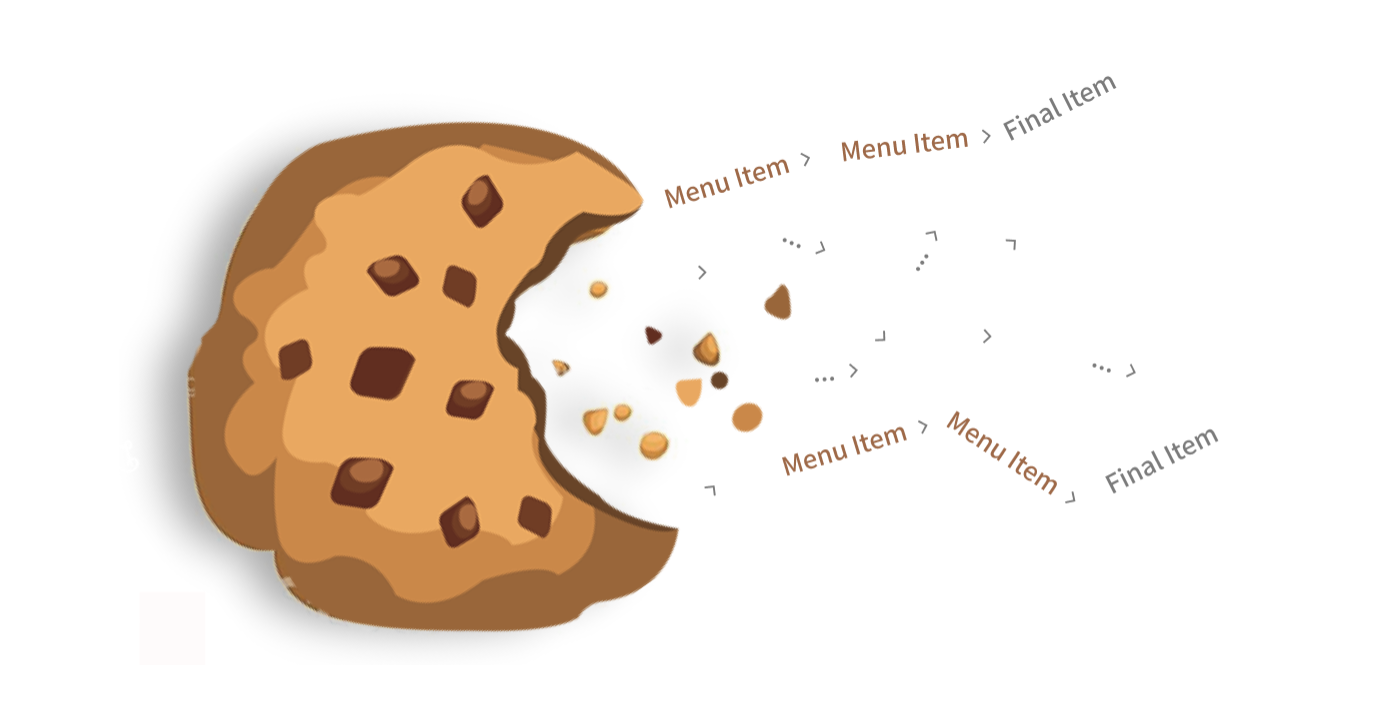
You may or may not need to incorporate breadcrumbs into your web design, but here are some things to keep in mind if you do.

NOTE: The majority of my inspiration came from 

Let’s get right into it!

Anatomy

Because one cannot design before they define.
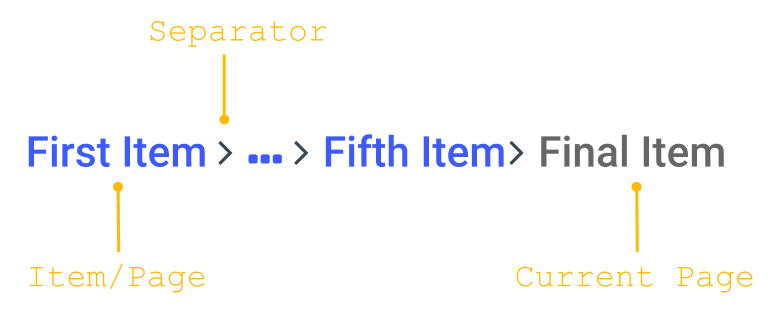
Breadcrumb

Please note, this is the terminology I will be using, although I know there are different definitions out there.

Utilization

Not every app needs breadcrumbs. At the same time, you should not avoid them due to the common misconception that they are outdated. You should leverage breadcrumbs if your app has a large hierarchical structure. Think .

Design best practices

1. Breadcrumb width should not exceed half of the page

This is for the sake of readability.  says it best:

Breadcrumb

If breadcrumb text wasn’t so readable to begin with I’d probably make the width 1/3 of the page.

This should be true whether the breadcrumbs are collapsed or expanded.
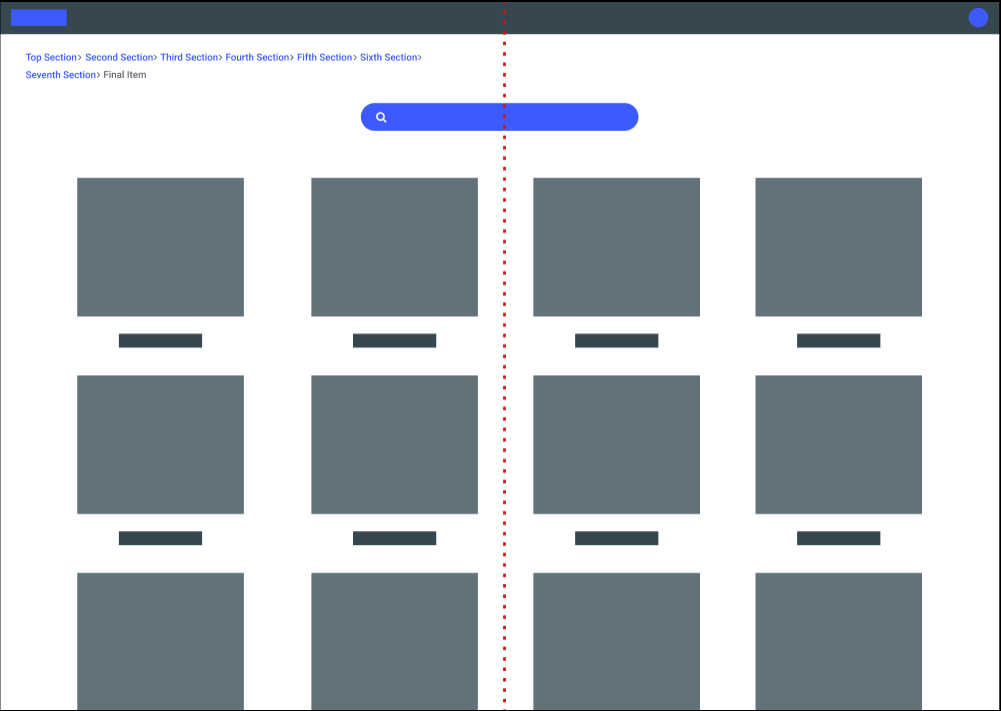
Overflow

Breadcrumbs overflow to next line in this example.

The only instance where you should not follow this rule is for mobile apps. In this case, use the entire screen width.
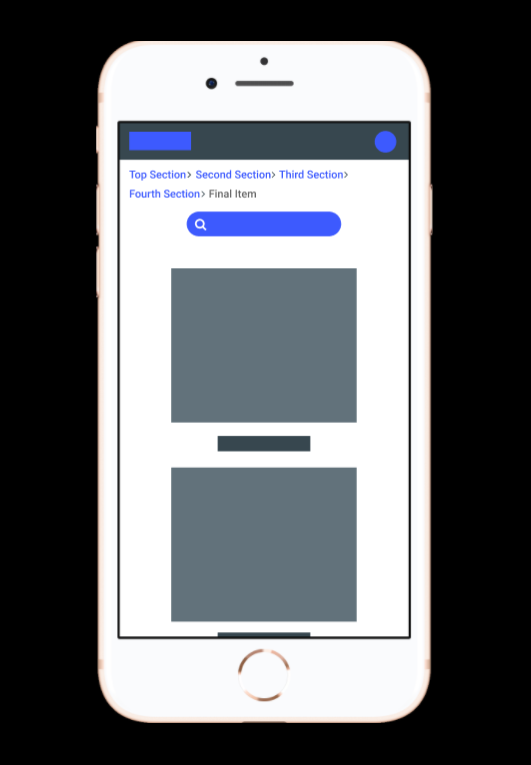
Mobile

Breadcrumbs overflow to next line in this example.

2. Collapse breadcrumbs by default if they have 4+ items

Why 4+ items? I’ll be honest, I picked this limit as it just “feels” right. 

If the user wants to see the entire trail of breadcrumbs, they should have the option to do so. As you can see from the design below, adding clickable ellipses is a great way of implementing this.

Mobile

Additional small things to consider:

Put the ellipses as close to the first item as possible — Items that are closer to the final item (current page) hold more weight to the user so you want to make those items visible.

NYC Subway

NYC Subway has a different context but leverages ellipses in multiple places 

Do not make the ellipses the actual first item — It is beneficial for users to know the origin of the current page they are on, especially if they are taken directly to the page they are on via a link.

Upon refreshing / re-navigating to the page, breadcrumbs should be collapsed again — There is no clean way to manually collapse breadcrumbs (nor do I think it is worth the effort) so make sure it is collapsed by default, even if they were expanded before.

3. Items with long name should leverage ellipses

There is no reason a really long page name should ruin the readability of your breadcrumbs. Use ellipses inside the item name if it gets too large.

Elipses

The ellipses in the item itself should still be clickable.

And (of course) all ellipses that replace text should have a hover over.

Hover

Probably should have added a more realistic name…

4. Separator icon should mimic movement

Users travel from page to page, so we should show that journey in our breadcrumbs. It’s a subtle design, but also requires minimal effort.

icon

Some of these icons are better than others, but at least they all show movement.

5. Last Item should not be clickable

The last item in the breadcrumbs should be the current page the user is on. This gives users quick confirmation of where they are in the app (even though this should be made clear elsewhere). It also provides consistency as the first page is also shown.

With that being said, the item should not be made clickable. Clicking this will only reload the page (which can be done using the refresh button) and could possibly confuse users in thinking they are on a new page.

As with all non-clickable elements, add signifiers (color, cursor type) to ensure users know this item cannot be clicked.

That should do it! Let me know if there are any other sure-fire best practices for Breadcrumbs! 

post authorAlex Zlatkus

Alex Zlatkus

Alex is a product designer from Boston, MA. With a history in customer support and quality assurance, he focuses on creating empathetic solutions, that work for all use cases.

Alex has extensive experience bringing UX best practices to startups and relish's every opportunity to advocate for design. Alex works at LogicManager, designing SaaS solutions in the risk management industry, and works part time at Connective, a social app for creatives. 

Tweet
Share
Post
Share
Email
Print

Related Articles

Discover how a simple comprehension test reveals if mobile content is too hard to read.

Article by Paivi Salminen
Why Reading on Mobile Is Uniquely Challenging
  • The article explains why mobile reading is harder: small screens and distractions make people miss information even when it’s there.
  • It introduces the cloze test, which removes words to measure real understanding: comprehension drops from 39% on desktop to 19% on mobile.
  • The piece argues that mobile content needs simpler language because the real question is: Does this make sense when life gets in the way?
Share:Why Reading on Mobile Is Uniquely Challenging
4 min read

Learn how to build systems where design explicitly models development, handoff is automatic, and AI can extend your work reliably.

Article by Jim Gulsen
Your Design System Works in Figma. Does It Work in Code?
  • The article explains why many design systems don’t work well: designs made in Figma don’t translate well into code.
  • It introduces five practices: structure frames like code, use fewer components with more variants, organize by how both designers and developers actually work, let AI check your naming, and build documentation into your daily workflow.
  • The piece says that good design systems are the same in design and development, and when they match, everything just works.
Share:Your Design System Works in Figma. Does It Work in Code?
6 min read

Find out why users really abandon your product. It’s not the button color or spacing. It’s something deeper.

Article by Tushar Deshmukh
Friction Science: Why Users Drop Off
  • The article explains that users don’t abandon products because of bad design, but because of psychological friction that makes them uncomfortable.
  • It identifies four types of friction: cognitive, emotional, behavioral, and interaction.
  • The piece emphasizes that designers must focus on cognitive pathways and mental flow, not just visual interfaces, to keep users engaged.
Share:Friction Science: Why Users Drop Off
5 min read

Join the UX Magazine community!

Stay informed with exclusive content on the intersection of UX, AI agents, and agentic automation—essential reading for future-focused professionals.

Hello!

You're officially a member of the UX Magazine Community.
We're excited to have you with us!

Thank you!

To begin viewing member content, please verify your email.

Get Paid to Test AI Products

Earn an average of $100 per test by reviewing AI-first product experiences and sharing your feedback.

    Tell us about you. Enroll in the course.

      This website uses cookies to ensure you get the best experience on our website. Check our privacy policy and